Using BAI
Last updated: 6 October 2026
BAI helps you understand your workload and become more aware of your work-life boundaries. It can support you in communicating and negotiating these boundaries with others, including how and when you are reachable. This guide takes you through the app step by step, from initial setup to everyday use: Controls, then Schedule, Status, Alerts, Mood, and finally Insights.
Each step has the screen you should be looking at. You do not have to read it all: search for a word, or open one section at a time. Once BAI is set up, the I want to… shortcuts further down take you straight to one thing.
Read this one first
What BAI is actually for, day to day
Everything after this is setup, done once. These six are the ones worth remembering — they are what using BAI looks like most days, once it is running.
1Your status is on the dashboard
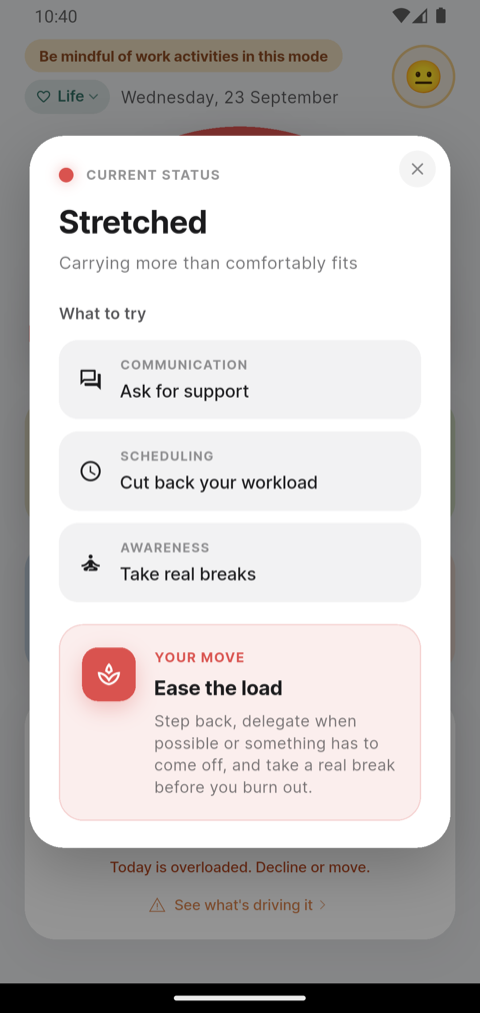
The arc on the dashboard shows how available you are right now. Tap it when you are not sure what to say, and BAI opens What to try — concrete ways to communicate, reschedule and protect yourself, for the status you are on right now — and Your move, the one to act on.
Do this any time you are not sure how to negotiate in the moment.
2Tell BAI how you feel
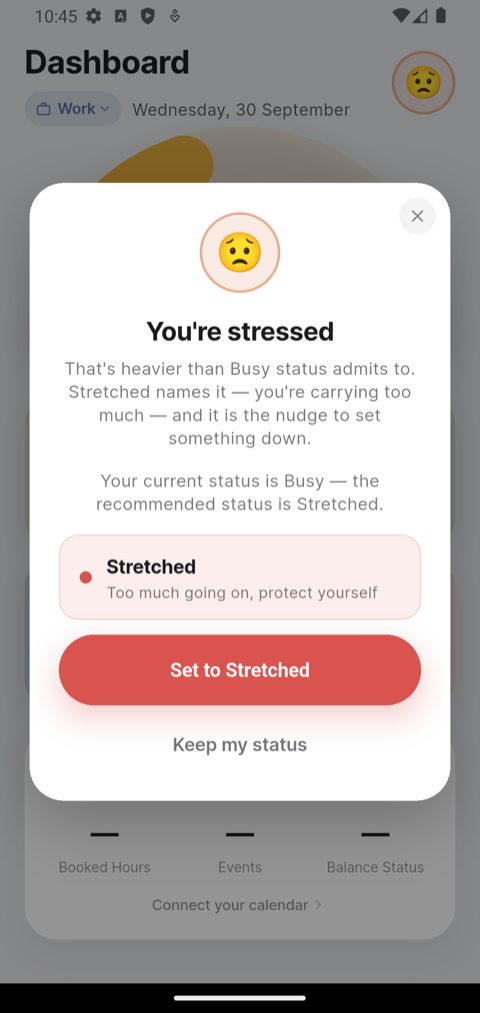
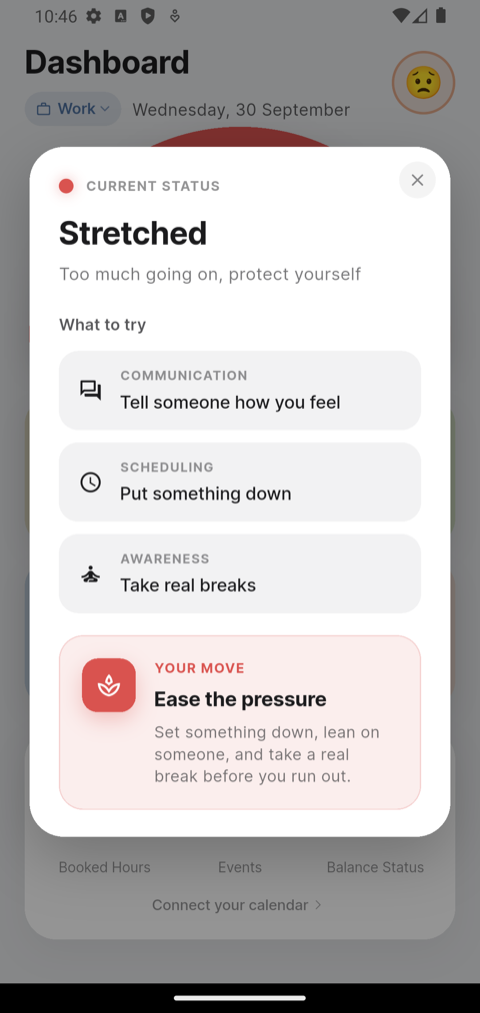
Tap the face and say how you feel. BAI may offer to set your status to match it — accept it, then tap the arc. The advice underneath now speaks to how you actually feel, not only to what your calendar shows.
The mood check-in sets the negotiation; the arc tells you how to run it.
3Before you say yes, check day/period
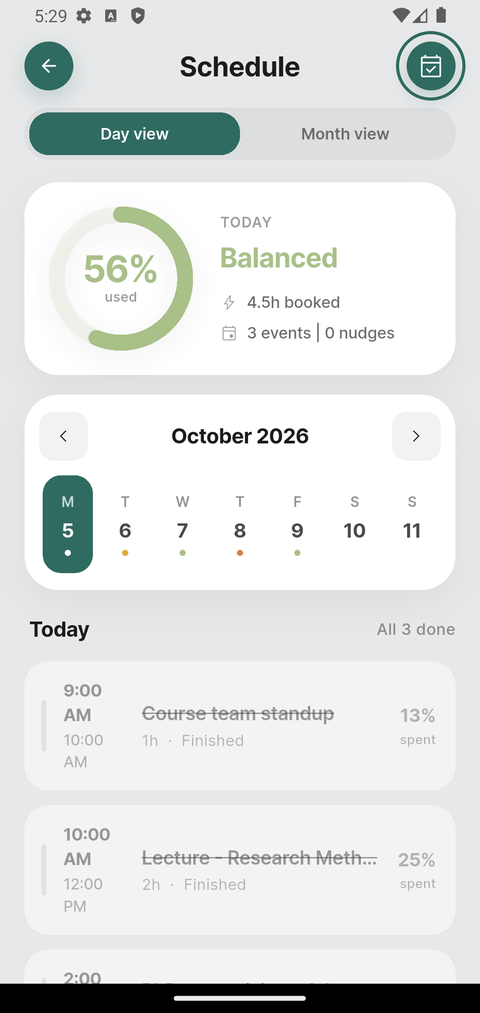
Before you say yes to something weeks out, look the date up on Schedule. Knowing what a week already holds is what tells you what to accept, what to decline, and what to ask to have moved.
This is the negotiation you have with whoever is asking, before you answer them.
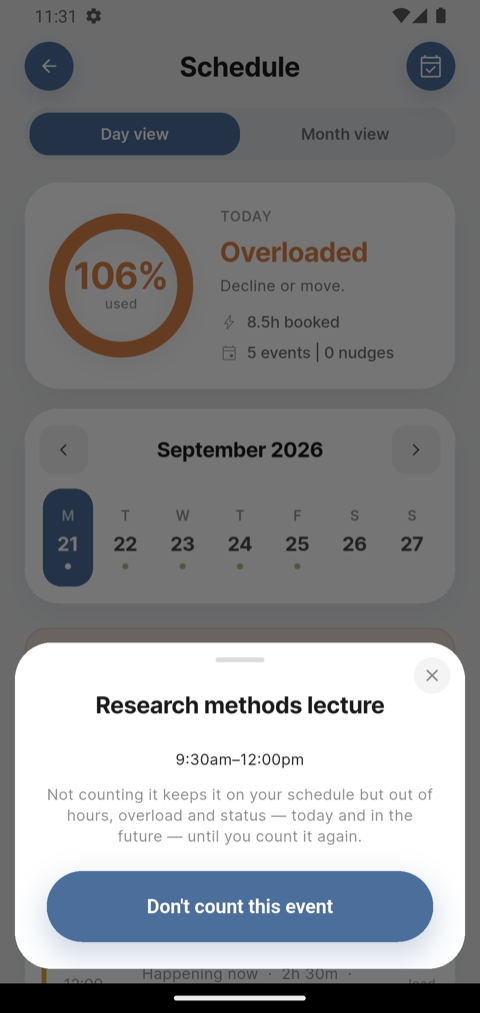
4Leave an event out of your count
On a day that is genuinely packed, set aside the events that are not really work you are carrying — Don't count this event. That is a negotiation too: with yourself, about what your day actually holds, before you take it to anyone else.
Do this whenever a day reads fuller than it really is.
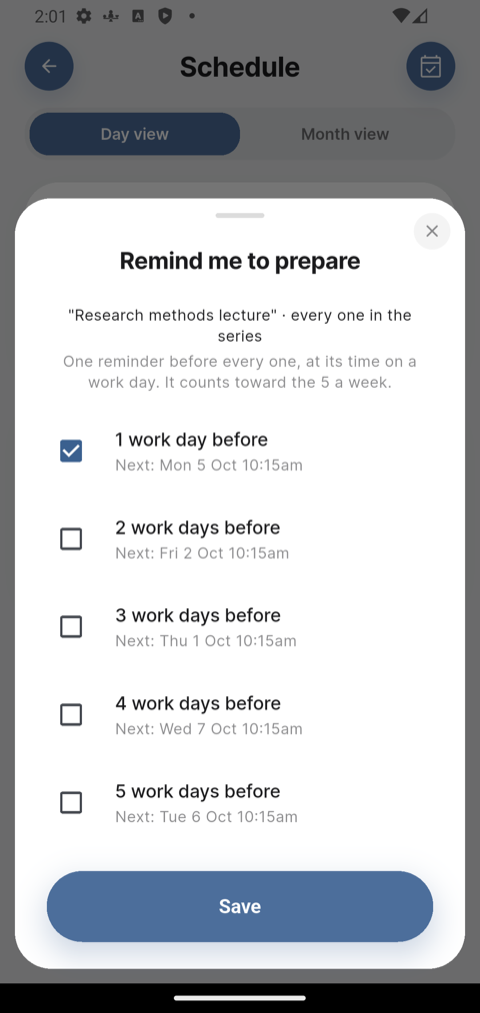
5Get a reminder to prepare
For something you need to get ready for, tap it on Schedule and choose Remind me to prepare: one to five work days before it. For something that repeats, like a weekly lecture, choose Remind me before every one and pick one.
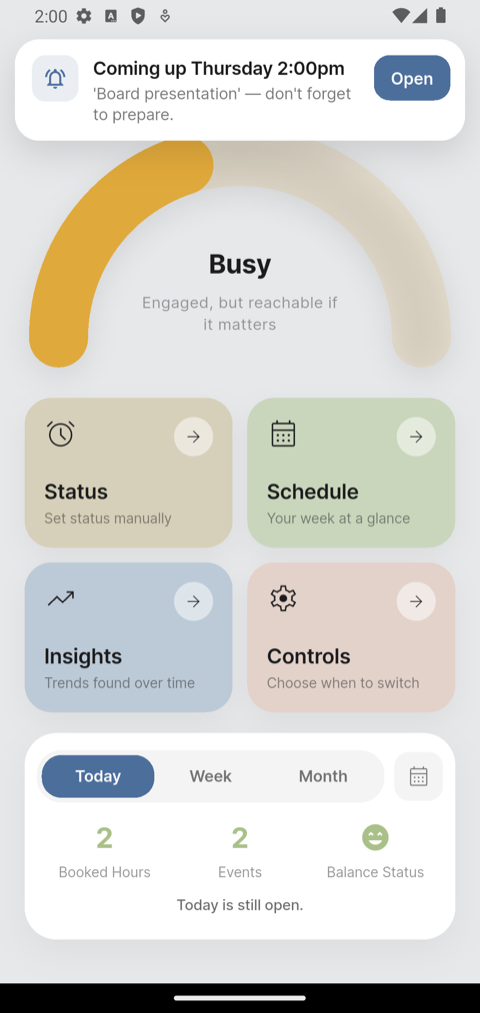
When it is due, BAI tells you: Coming up Thursday 14:00: 'Board presentation' — don't forget to prepare. On the lock screen when you are away, in the app when it is open. Tap Open to see that day.
Set it the moment you agree to something, so the preparation gets a place in your week too. More on reminders to prepare.
6Say when you work outside your hours New
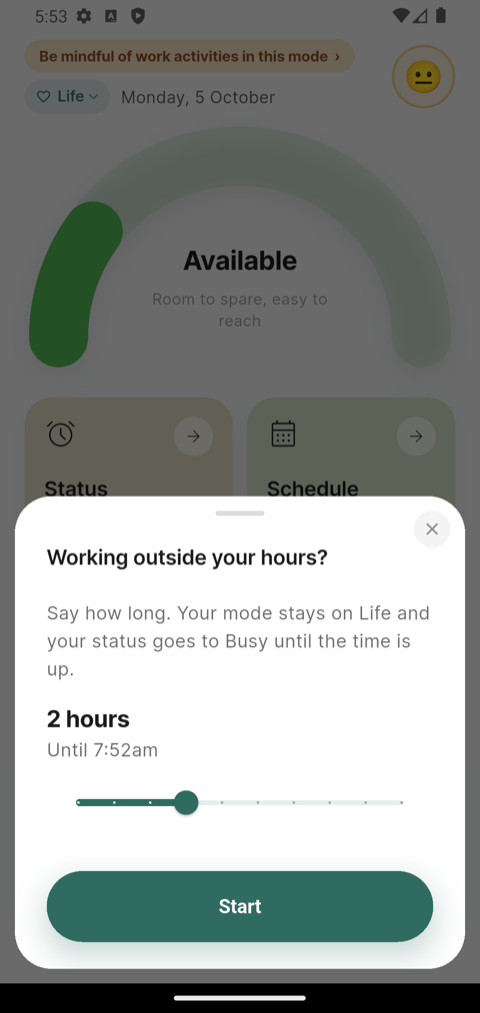
Working outside your working hours or over the weekend, on something that is not in your calendar? On the dashboard in Life mode, tap the yellow line (Be mindful of work activities in this mode ›) and set how long, from 30 minutes to 5 hours.
Your mode stays on Life and your status goes to Busy until the time is up. If a calendar event starts in that time, it moves to Heads-down and back. Tap the line again to change the time or end it. Stretched and Unavailable are left as you set them.
Forgot to say? When something suggests you worked, BAI asks the next day: Did you work outside your hours yesterday? Your answer only saves the hours.
The line can be tapped while your schedule is on. With the schedule off, switch to Work by hand instead. Where the hours show up.
I want to…
Finish setting up first. These shortcuts assume your schedule and calendar are already set in Controls. If they are not, start there.
Tap one to go straight to it.
- know what to say right now
- check in with how I feel
- add a mood of my own
- check whether I am free on a date
- stop an event counting
- get a reminder to prepare
- say I am working outside my hours
- find out why my day looks too full
- understand an overloaded alert
- set my working hours
- have several work blocks in a day
- switch mode by where I am
- switch mode with Focus or Do Not Disturb
- switch to Work by hand
- turn BAI off for a holiday
- choose which calendars count
- connect a calendar by its link
- set a part-time arrangement
- understand Stretched and Unavailable
- read my week in Insights
- add the widget on an iPhone
- add the widget on Android
Before you start
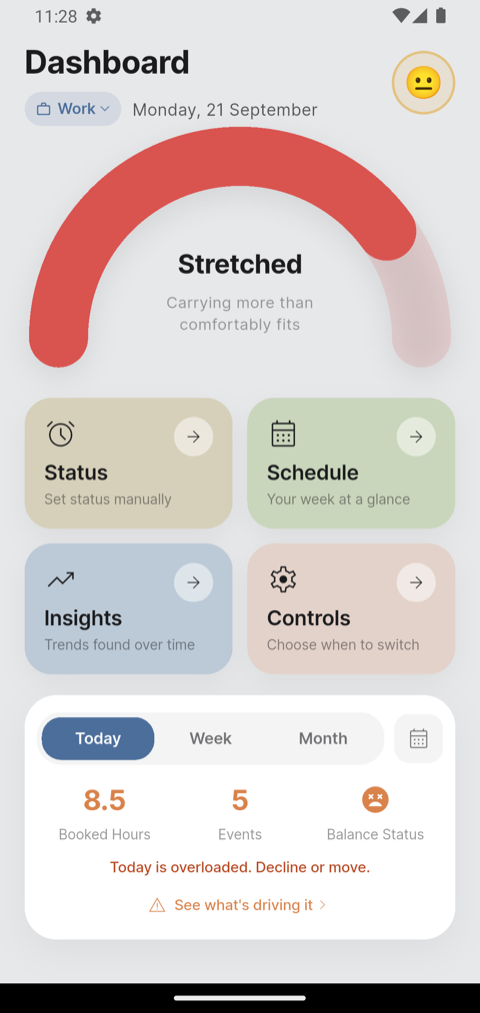
The dashboard
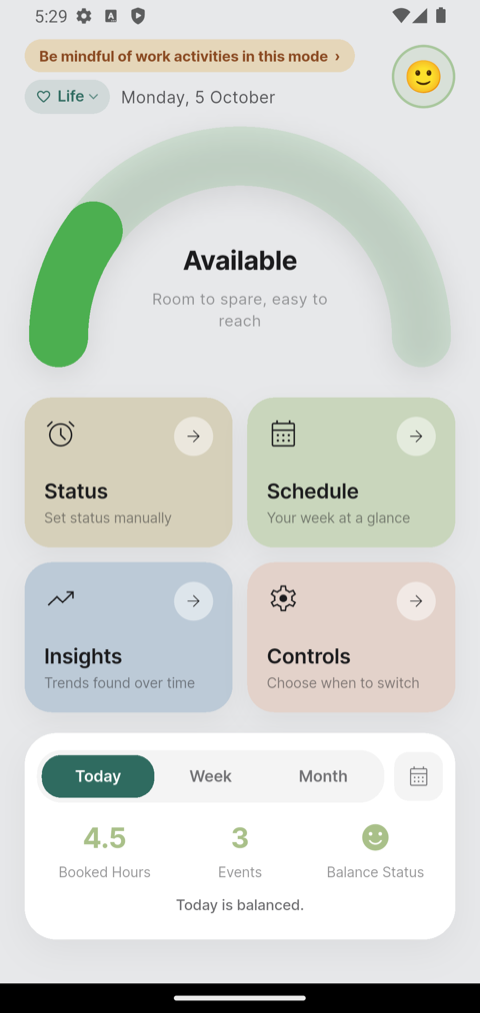
This is what opens when you launch BAI, and where the tour begins and ends.
The first time you open BAI after an update, a short set of cards shows over the dashboard: the everyday things, one per card. The pictures on them are examples only. Tap Next to go through them or Skip to close; the last card has a button that opens this guide.
·What you are looking at
- The arc is your current status — here, Available.
- The chip beside the date is your mode, Work or Life — here, Life.
- In Life mode, a yellow line sits where the title Dashboard would be: Be mindful of work activities in this mode. While your schedule is on it ends in › and can be tapped, to say you are working outside your hours (Daily use, step 6).
- The face, top right, is your last check-in. Tap it to update how you feel.
- The four tiles are the rest of the app.
- The card at the bottom reads your calendar: hours booked, how many events, and whether the day is balanced.
Step 1
Controls — tell BAI when you work
Start here. Controls is where you set the working pattern everything else is measured against, and choose what BAI is allowed to read.
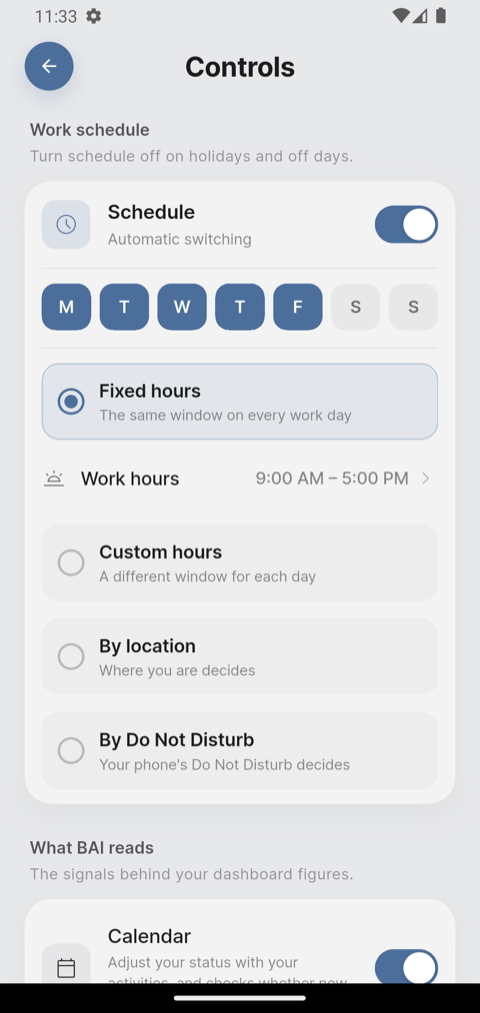
1Turn the schedule on
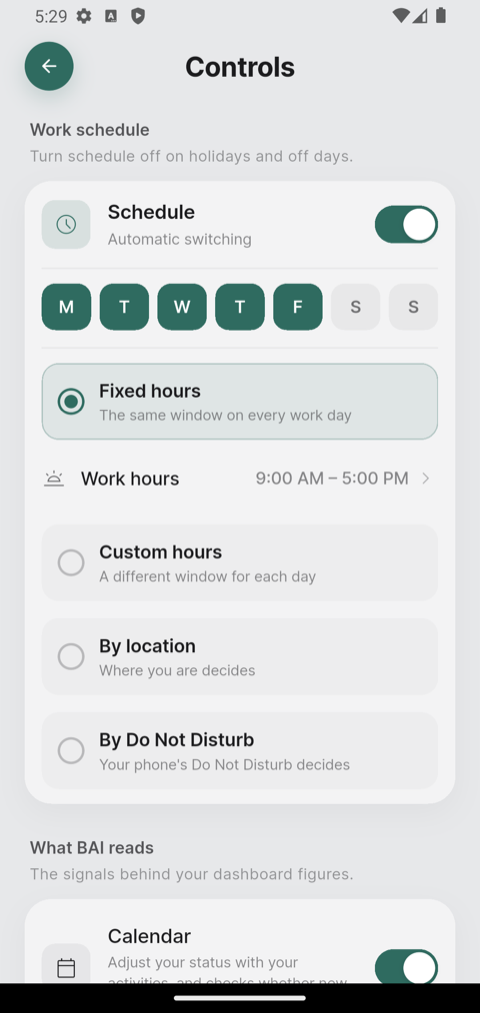
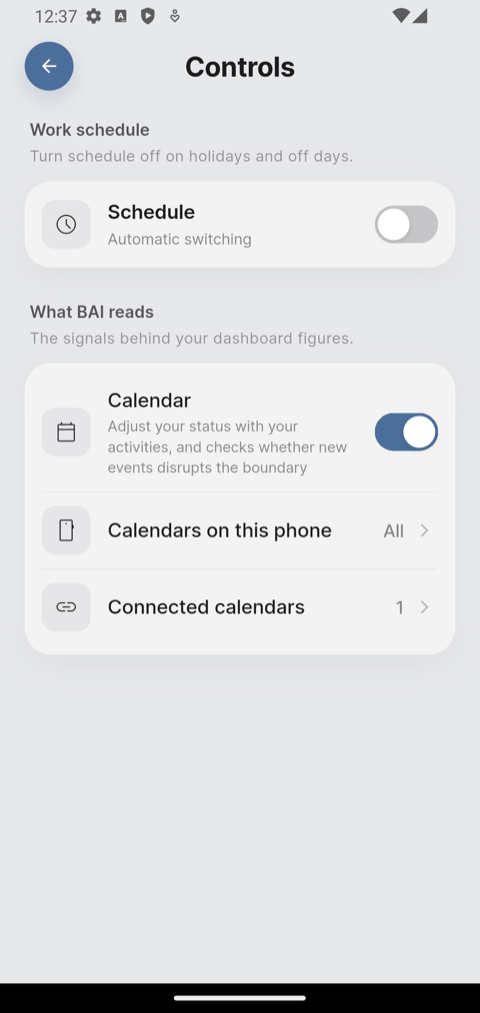
From the dashboard, tap Controls. Switch Schedule on to let BAI move you between Work and Life mode by itself.
Tap the day letters to pick your working days — selected days are filled in. Weekends are off by default.
Turn the schedule off on holidays and days off. BAI then leaves your mode alone until you switch it back on.
1aSwitching by hand, with the schedule off
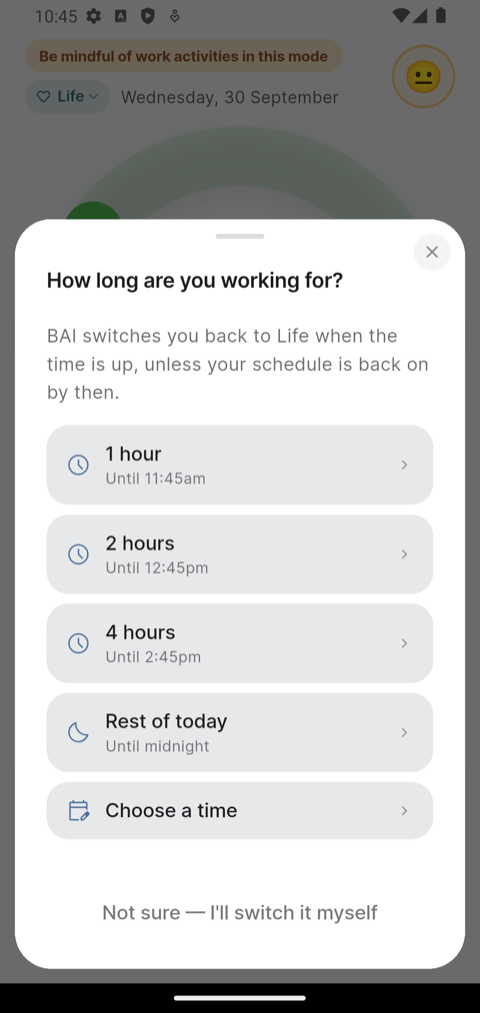
With the schedule off, tap the mode chip on the dashboard and choose Work. Coming from Life mode, BAI asks How long are you working for? — pick 1, 2 or 4 hours, the rest of today, or choose a time of your own.
- BAI switches you back to Life on its own when the time is up — unless you have turned the schedule back on by then, in which case the schedule takes over instead and the timer is dropped.
- Not sure — I'll switch it myself skips the timer entirely. Work mode is still set, and it is yours to switch back whenever you like — same as before this existed.
For anyone who manages Work and Life by hand and sometimes forgets to switch back — set a length once, and BAI remembers for you.
1bTold twice, never both
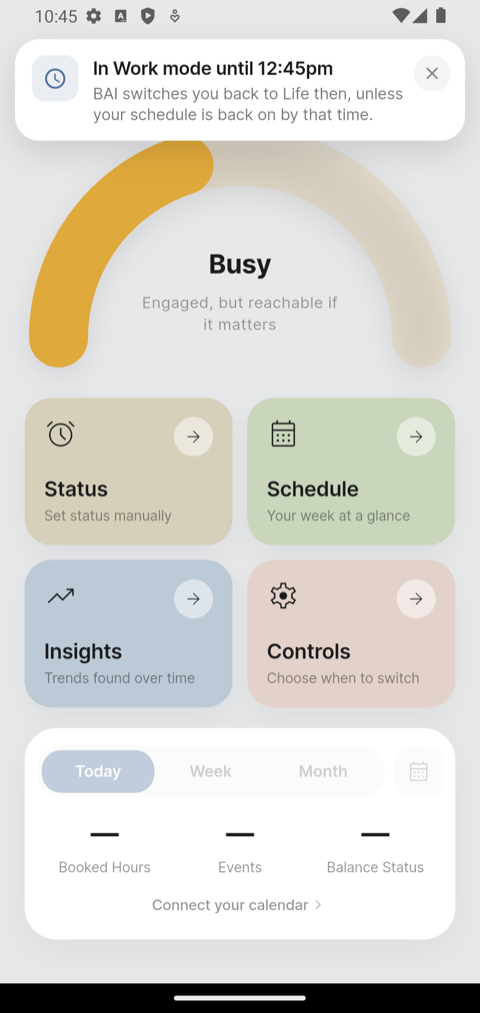
Choosing a length shows a banner straight away, naming the time you will be switched back. When that moment comes, BAI tells you the same way it tells you about anything else: on the lock screen if you are away, in the app if you are not.
2Choose how your mode is decided
Pick one — BAI uses one way at a time:
- Fixed hours — the same window every working day. Tap Work hours to set it.
- Custom hours — each day has its own hours, and can have several work blocks. See the next step.
- By location — where you are decides. You pin a place that means Work and one that means Life.
- By Focus (iPhone) or By Do Not Disturb (Android) — your phone's own setting decides. See the step after next.
2aCustom hours: several blocks a day
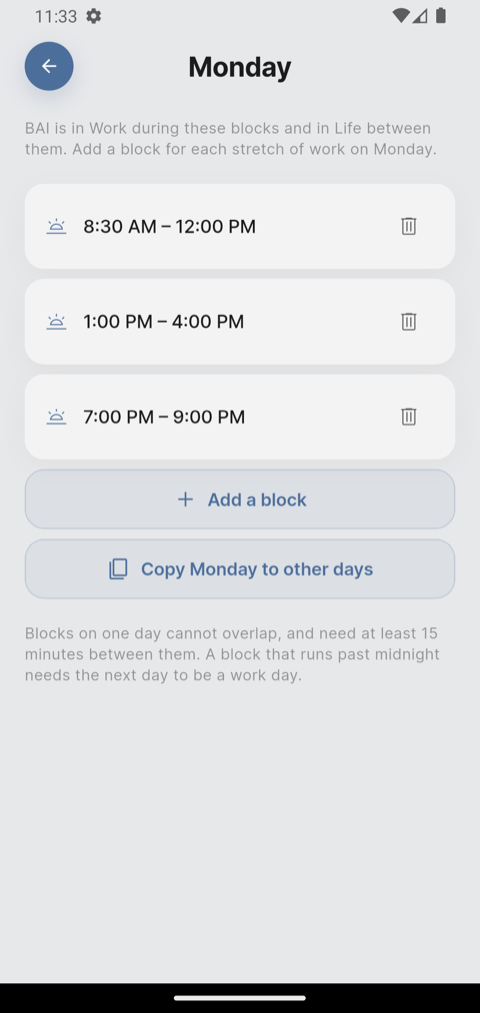
Some days are not one stretch — a morning, then an afternoon, then a shift in the evening. With Custom hours, tap a day and use Add a block for each one, for example 9:00–11:00, 2:00–7:00 and 8:00–11:00 in the evening. Tap Remove this block on any you no longer want.
- Up to three blocks a day, so you are not flooded with alerts. (A day you set up earlier with four keeps them.)
- Blocks cannot overlap, and need at least 15 minutes between them — the break you meant to take.
- Copy [day] to other days saves setting the same day up again.
- A block can run past midnight if the next day is a working day. If it is not, BAI tells you why it will not save; tick the next day first.
- A fresh install starts with one block, 9:00–5:00.
BAI is in Work mode during every block and in Life mode between them, so a forgotten manual switch does not leave you at work all evening.
2bBy Focus and By Do Not Disturb
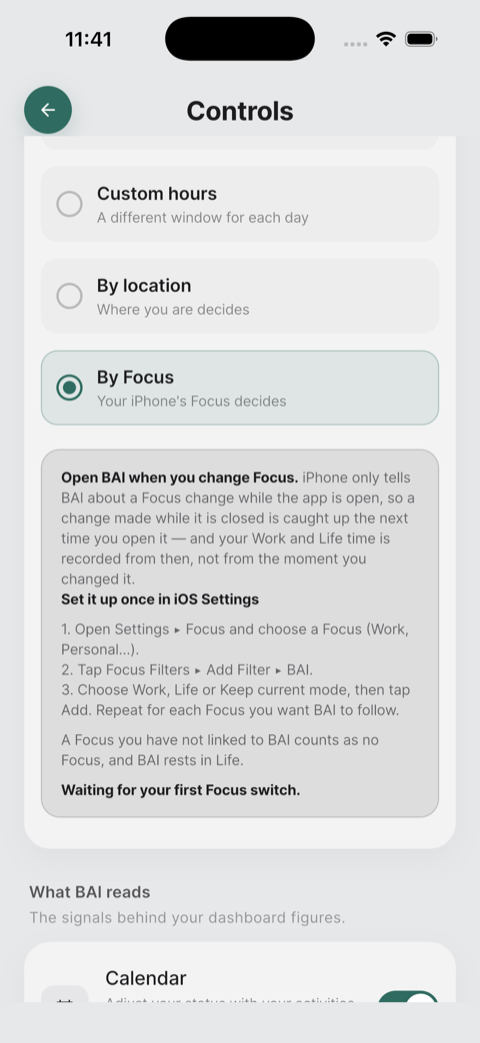
Instead of hours, let your phone decide: switch on a Focus (or Do Not Disturb) and BAI moves you to Work; switch it off and you are back in Life.
On iPhone — By Focus. Set it up once in iOS Settings:
- Open Settings ▸ Focus and choose a Focus (Work, Personal…).
- Tap Focus Filters ▸ Add Filter ▸ BAI.
- Choose Work, Life or Keep current mode, then tap Add. Repeat for each Focus you want BAI to follow.
Controls then says Connected. Last heard… the first time it hears one.
Open BAI when you change Focus.
iPhone only tells BAI about a Focus change while the app is open. A change made while BAI is closed is caught up the next time you open it — and your Work and Life time is recorded from then, not from the moment you changed it.
On Android — By Do Not Disturb. One button turns your phone's Do Not Disturb on or off, and the mode follows: Work while it is on, Life while it is off. The first time, Android sends you to a system page to give BAI Do Not Disturb access. The Count Do Not Disturb switch decides whether being on counts as Work at all.
2cBy location: pin the places
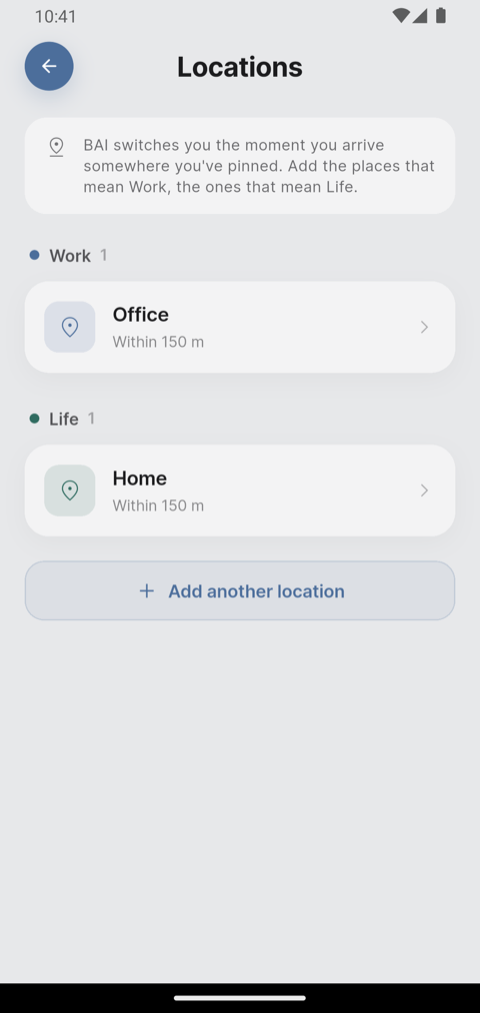
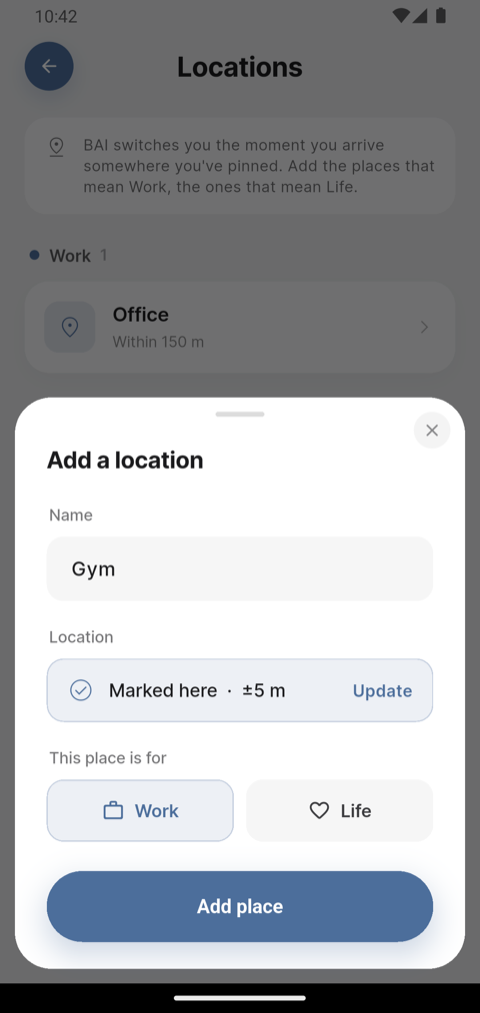
Choose By location, then tap Locations. Add the place that means Work and the one that means Life — your office, home, wherever the switch should happen.
- Tap Add a location, name it, and choose Work or Life.
- Tap Locate me, then Add place once it reads Marked here.
- Pin at least one of each. With only one, BAI can switch you on arrival but has nothing to bring you back.
2dMark a place standing at it
Only add a place while you are standing at it.
Locate me marks exactly where your phone is at that moment — not an address you type in, and not somewhere you are planning to be. Marking your office from home, or the other way round, pins the wrong spot, and BAI will switch you at the wrong place — or never.
BAI confirms with Marked here and how accurate the reading is — a few metres is normal indoors.
3Turn the calendar on
Scroll to What BAI reads and switch Calendar on. Two ways to give BAI a calendar appear beneath it — use either, or both:
- Calendars on this phone — the calendars already in your phone's Calendar app.
- Connected calendars — a calendar added by its link, for one that is not on your phone, or when you would rather BAI did not have all of your phone's calendars.
BAI only ever reads your calendars. It never adds, edits or deletes anything.
With the switch off, the Schedule and the dashboard say Calendar is off. With it on but no calendar chosen yet, they say No calendar connected. Either one takes you straight here.
4Calendars on this phone
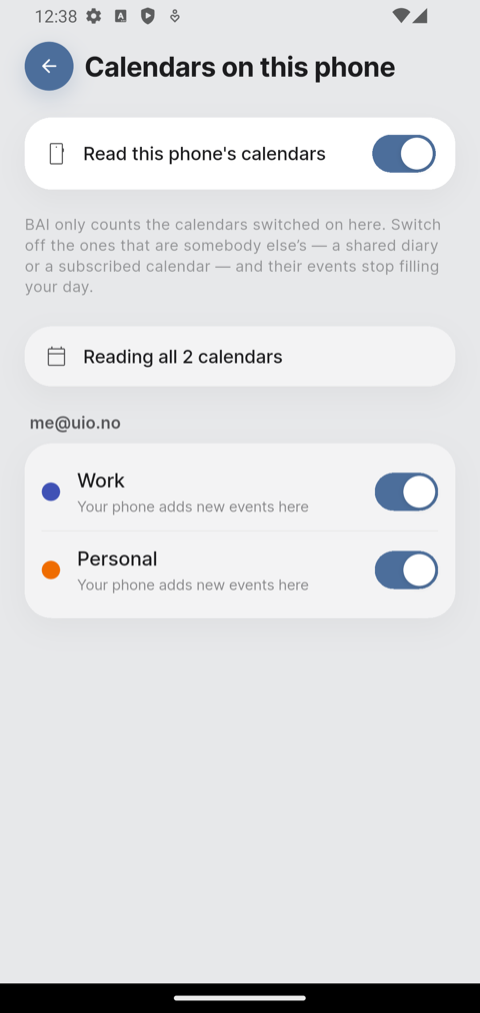
Tap Calendars on this phone. The first time, your phone asks whether BAI may read its calendars — this is the only place it asks.
Every calendar on your phone is listed, grouped by the account it came from. Switch off the ones that are somebody else's — a shared team calendar, a subscribed holiday feed — and their events stop filling your day. To leave the phone's calendars out altogether, turn off Read this phone's calendars at the top.
This matters more than it looks. A shared calendar you cannot control will otherwise make every week read as full.
5Connect a calendar by its link
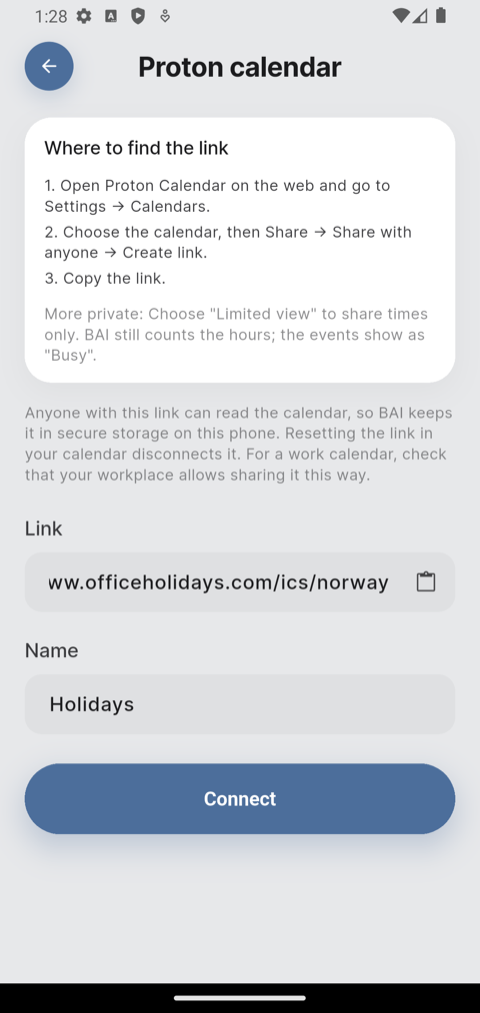
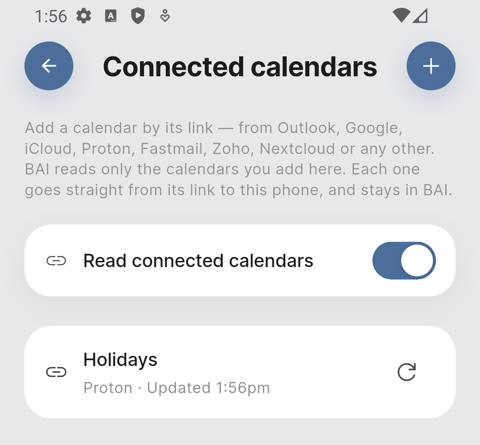
For a calendar that is not on your phone — or one you would rather keep off it — tap Connected calendars, then +. Choose where it lives: Outlook, Google, iCloud, Proton, Fastmail, Zoho, Nextcloud, or Other for anything else.
- BAI shows where that service keeps the calendar's link. Copy it, paste it under Link, give the calendar a name, and tap Connect.
- Where the service offers it, you can share busy times only. BAI still counts the hours; the events show as "Busy".
- Each calendar shows when it was last updated. BAI updates it by itself; the refresh button updates it now. Tap a calendar to remove it.
- To stop BAI reading them for a while, turn off Read connected calendars at the top. Your calendars and their links are kept, and come back as soon as you turn it on again.
- To see which calendar an event came from, tap it on the Schedule: it says Phone – Work for a calendar on your phone, or Linked calendar – Holidays for one you connected. The same event in two calendars is shown and counted once, and names both.
The link goes straight from your calendar service to your phone, and stays in BAI — it is not added to your phone's Calendar app, and nothing is sent to the study. Anyone holding the link can read that calendar, so keep it to yourself; resetting it in your calendar service disconnects it. For a work calendar, check that your workplace allows sharing it this way.
Step 2
Schedule — what your day actually holds
With a calendar connected, the Schedule screen turns your calendar into a single reading: how much of today is already spoken for.
1Read today's ring
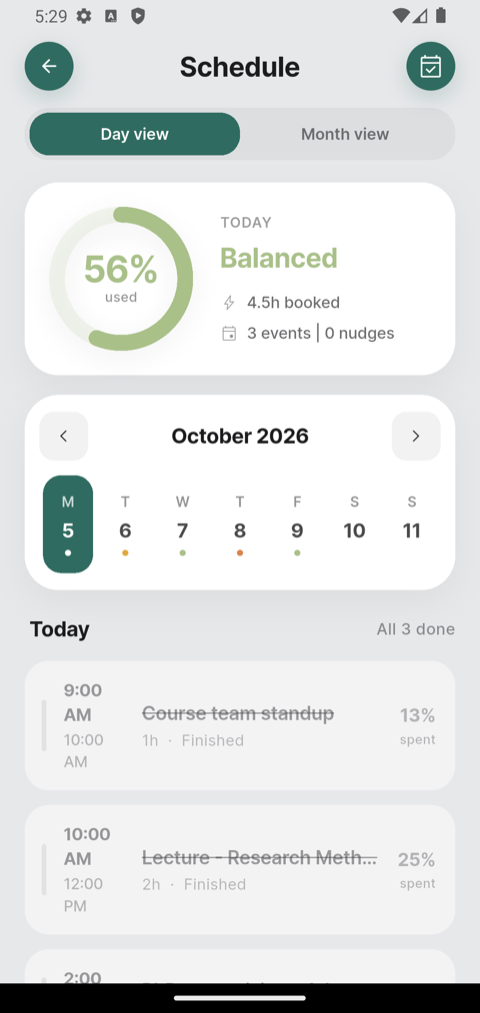
Tap Schedule from the dashboard. The ring is the share of your day already booked, and the word beside it is the verdict — Wide open, Still open, Balanced, Filling up or Overloaded.
Underneath it: hours booked, and how many events that is.
2Scan the week, then the day
The strip under the ring is your week. The coloured dot beneath each date is that day's verdict, so you can see a heavy Thursday coming before you agree to anything else. Tap any date to read it.
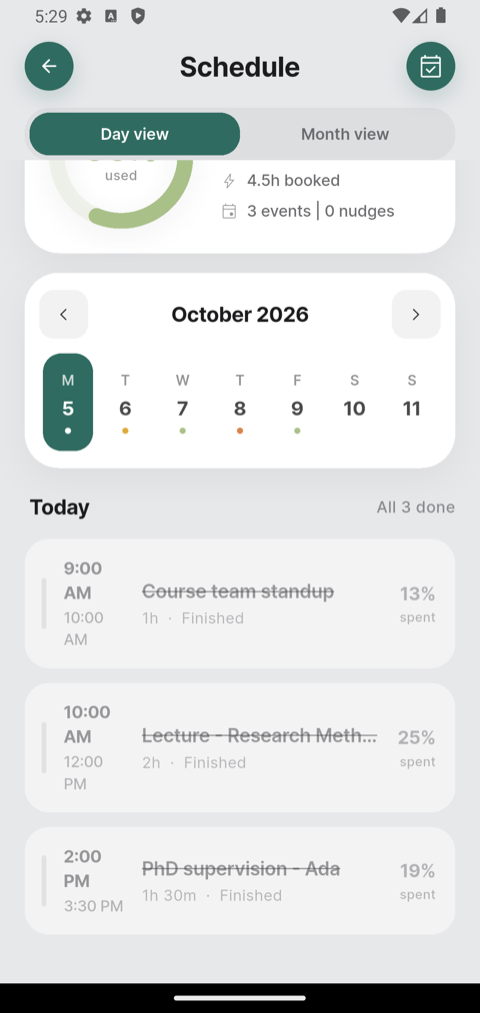
Below that, every event on the chosen day, with its share of your capacity. Finished ones are struck through.
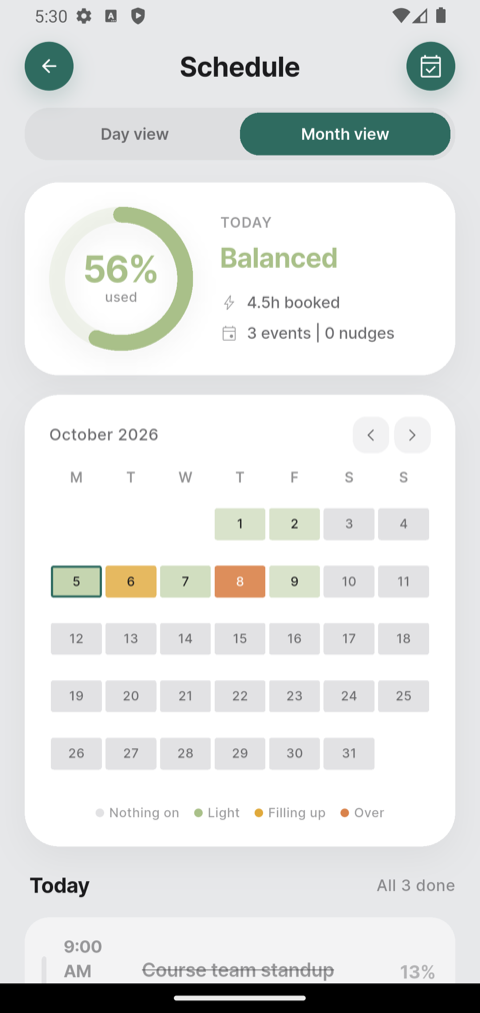
3Step back to the month
Tap Month view for the whole month at once, each day tinted by how full it is. The key at the bottom explains the colours.
Useful when someone asks for a date three weeks out and you want to know what that week already looks like.
4Check a date before you say yes
The calendar button in the top-right corner answers a different question from the rest of the screen: not "how is today going?" but "am I free then?"
Tap it and pick a date. For a range — a conference week, a fortnight you are thinking of taking on — drag across the dates, or tap a second date. Tapping or dragging again starts over, so there is nothing to undo. Then tap See availability.
A drag stays inside the month on show. For a range that runs into the next month, tap the first date, use the arrow, and tap the last.
BAI answers in a sentence — You're open, There is room, You're nearly full, You're full, or Some days are full when the average looks fine but individual days do not — with the figures underneath it.
This is the one to reach for when somebody asks you to commit to a date, which is exactly when the diary is hardest to hold in your head.
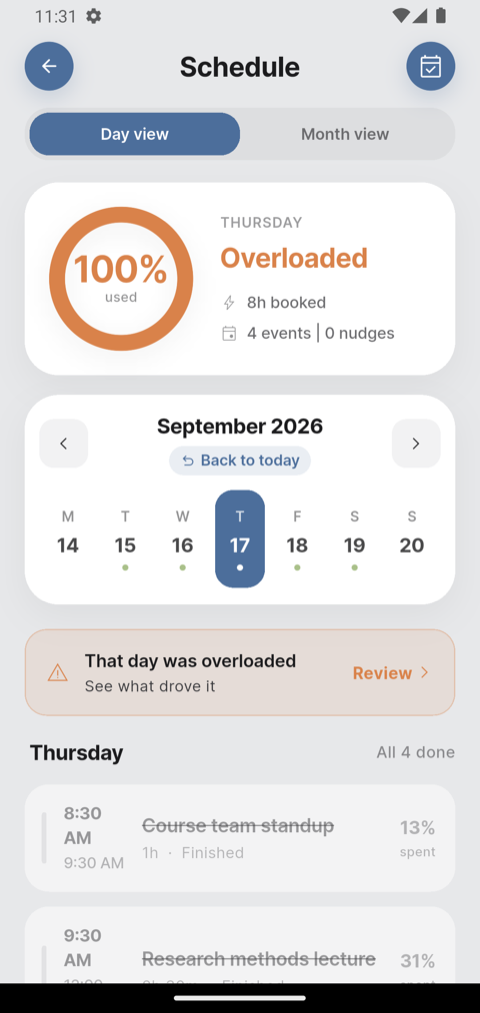
5Go back and look
The week strip and the month view both let you go back to earlier days. On a day that has already gone, BAI describes it in the past tense — that day was overloaded, nothing was scheduled — and stops giving advice about it, because there is nothing left to move.
6Set an event aside: Don't count this event
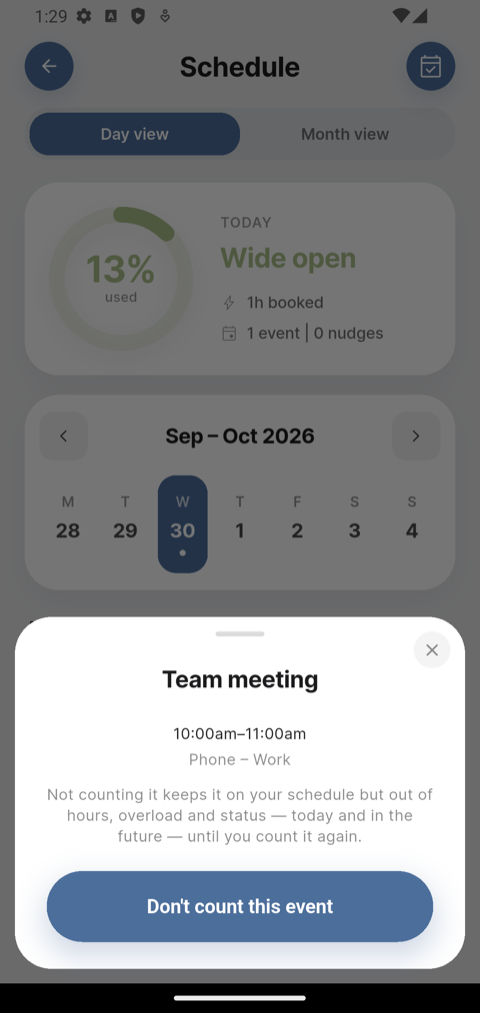
Not everything in your calendar is work you are carrying — a private appointment, a reminder-style entry, something you are not really attending. Tap the event on the Schedule and choose Don't count this event. For an event that repeats you can also choose Don't count any in this series.
- The event stays on your schedule, marked Not counted — it is set aside, not deleted.
- It is left out of your hours, the ring, overload and your status, today and in the future, until you count it again.
- To bring it back, tap it and choose Count this event again.
- It reacts at once: the ring, the dashboard figures and your status all follow, as if you had deleted it.
- This is for today and the days ahead. Once a day has passed, its events can no longer be tapped; earlier today still can.
7New in your calendar
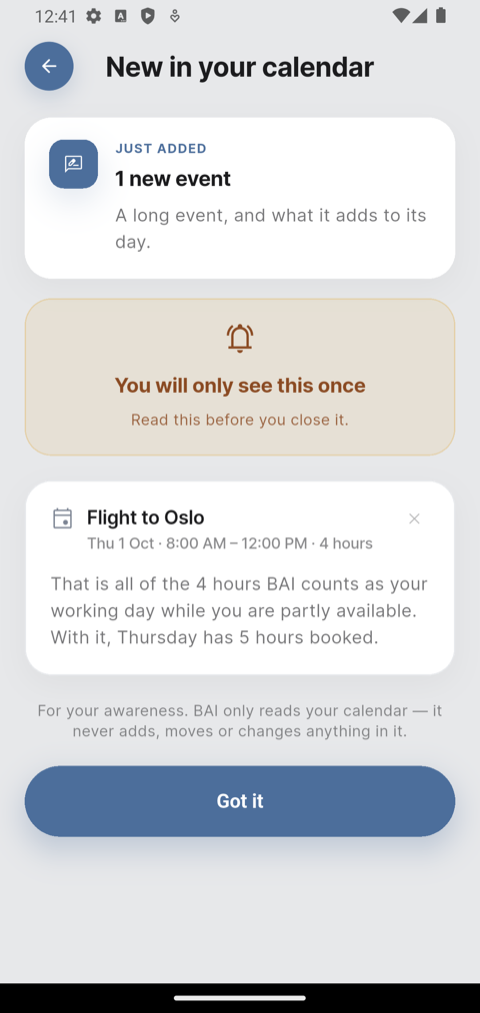
When you add a long event — two and a half hours or more — the Schedule shows a strip: 1 new event in your calendar. Tap it to see each one highlighted, not judged:
- when it is and how long it runs;
- what share of a working day that is — That is half of the 8 hours BAI counts as a working day — and what the day comes to with it;
- anything it overlaps, and a length the title names if the block differs (The title says 4h).
BAI does not guess what an event is or tell you how long it should take. You know what you booked; this is only so nothing lands unnoticed.
8Remind me to prepare
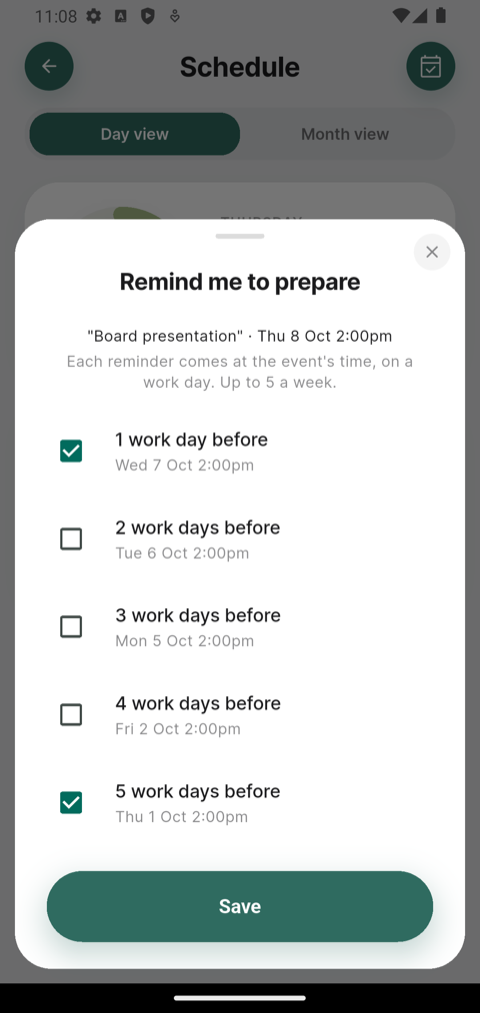
For an event you need to get ready for — a presentation, an exam, a hard conversation — tap it on the Schedule and choose Remind me to prepare. Tick any of 1 to 5 work days before; each line shows exactly when it will come.
- It comes at the event's own time on that work day, kept between 9:00 and 20:00 — Coming up Thursday 14:00: 'Board presentation' — don't forget to prepare.
- Work days are yours, from Controls: one work day before a Monday event is the Friday.
- Up to five reminders a week, for events up to two months ahead.
- For something that repeats, like a weekly lecture, choose Remind me before every one and pick one of the five. It follows the series until it ends; a cancelled one gets no reminder. This is for events that repeat once a week or less. One-off reminders come first: in a week that already has five, the series one is skipped, and the sheet tells you how many.
- The card shows 🔔 Prepare (2). Tap the event again to change or remove them. If the event moves, the reminders move with it; if it is deleted, they go.
If BAI is open when a reminder is due, it tells you in the app instead of on the lock screen.
What counts against the ring, and what doesn't
Assumptions that are worth saying plainly about what BAI charges to your day.
- Marking something tentative changes nothing. An event you answered Maybe, or have not replied to at all, counts in full — as does anything your calendar shows as Tentative or Busy.
- All-day entries never charge hours. A birthday, a public holiday and an all-day conference are treated alike: they appear as entries with no hours rather than time booked.
- Three things take an event out of the figures: declining it outright, setting it to Show as: Free in your calendar app, and your own choice to Don't count it (above). Cancelled events are ignored entirely.
So a week of invitations you will probably turn down reads as full, and a week at an all-day conference reads as open. If the ring ever looks wrong, this is usually why.
Step 3
Status — how reachable you are
Your current status is the boundary negotiation practice you must follow in the moment/time/period.
Tap on the arc to see more details.
Most of the time the schedule sets it for you; but you can also control this manually or via your mood.
1Set it yourself
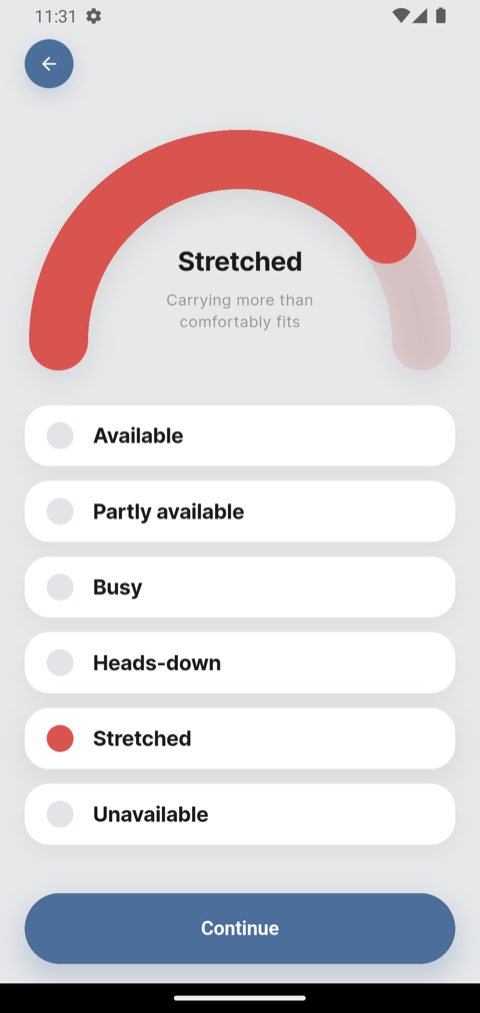
Tap Status on the dashboard and choose one of six:
- Available — room to spare, easy to reach.
- Partly available — working part of the time, by arrangement.
- Busy — engaged, but reachable if it matters.
- Heads-down — fully committed, limit interruptions.
- Stretched — carrying more than comfortably fits.
- Unavailable — switched off, be unreachable.
Tap Continue to confirm — or slide your finger round the arc at the top; it stops on each status, Partly available included.
2Partly available: an agreed arrangement
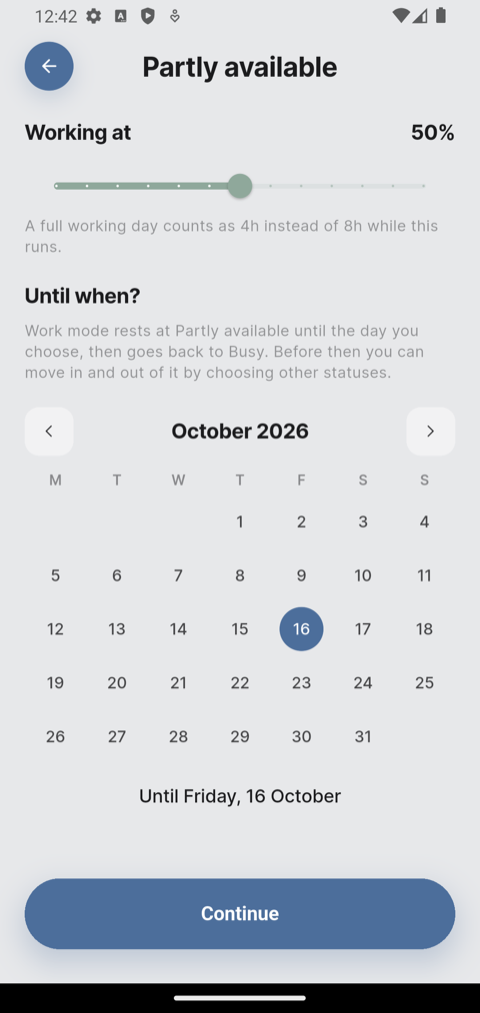
For someone working, say, half time, four hours a day, or two days a week — an arrangement agreed with an employer, for health or another reason. It is not about how full your calendar is; it is a standing agreement about how much you are available.
- Choose Partly available, then tap Continue. On the next page, set Working at — how much of a full day you work, from 20% to 80% — and under Until when? pick the last day of the arrangement. Continue stays greyed out until you have picked one. The last page repeats both before you tap to set it.
- Your days are measured at your level. At 50%, a full day is 4 hours instead of 8, so the ring, the 7:00 alert and Stretched all count against 4 hours on the days the arrangement covers.
- While it runs, Work mode rests at Partly available instead of Busy. A meeting still lifts you to Heads-down and back, and a day that is booked past its limit still raises Stretched.
- While it runs, the top of the Status page says so — Partly available (50%) until Mon 12 Oct — with an End it button. Ending it keeps today as it is and makes today the last day; tomorrow is back to normal. Otherwise it ends by itself after the last day.
- Insights shows Your arrangement while it runs: what you booked against what you agreed, and how your time and check-ins have gone (Insights).
- Choose it while you are in Life mode and BAI tells you it takes effect the next time you are in Work mode. In Work mode it takes effect at once.
Only you can set it — on the Status page. Your mood never sets it, and neither does an event in your calendar.
3The two statuses BAI leaves alone
Available, Busy and Heads-down move with your day. Stretched and Unavailable are different: no meeting or calendar event changes them.
- Unavailable stays until you change it, through midnight and beyond.
- Stretched is raised once, by the first event of a day that is booked past what it holds. From then on, a meeting starting, ending or being added does not move it.
- Change your mind about the load — set events aside with Don't count, or delete or shorten them — and if the day is no longer overloaded, the Stretched BAI raised comes down by itself to what fits.
- A Stretched you chose — on the Status page or through your mood — stays until you change it, whatever your calendar does.
- At midnight, Stretched resets only if you are in Life mode. In Work mode it is held, and checked again the next midnight, so a late shift is not cut off at twelve.
Step 4
Alerts — when a day is too full
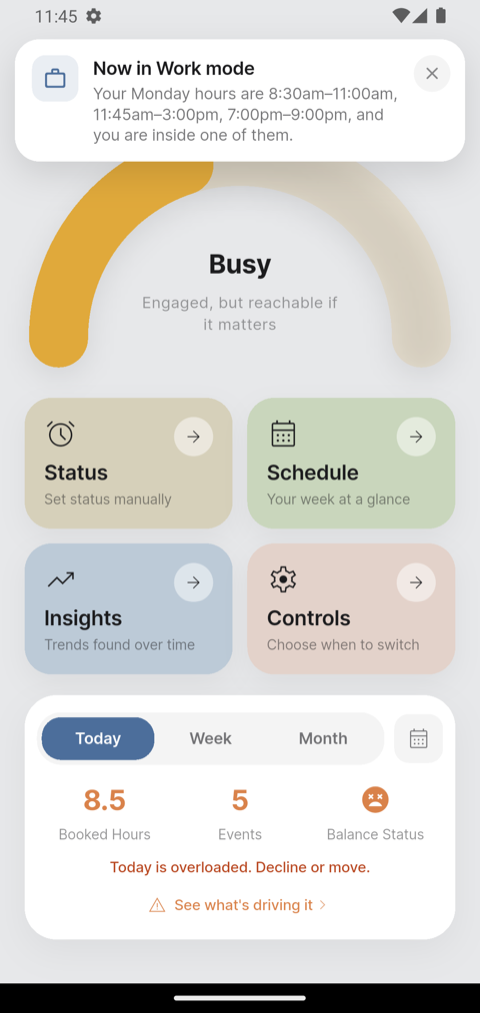
BAI tells you three kinds of thing: when it switches your mode, when a day is overloaded, and the occasional reminder that a setting needs a look.
You are told once: on the lock screen if you are away, in the app if you are in it.
Never both. If your phone's notifications are switched off, BAI tells you in the app instead. If the Control Centre or a call is laid over the app, BAI still counts you as being in it.
1Today is overloaded
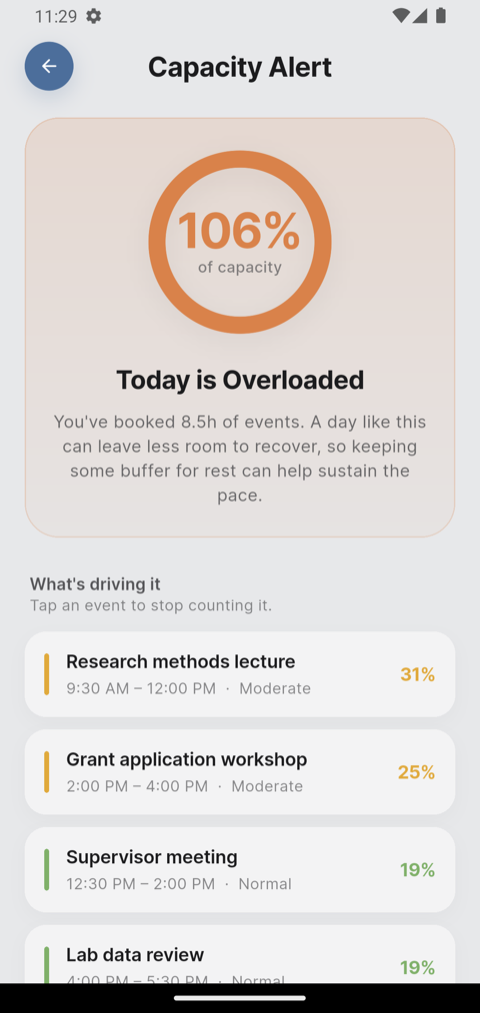
When a day is booked past what it holds, BAI tells you — by default at 7:00 in the morning, or as soon as a new event pushes today over the line. Tap the alert (or a Now Stretched alert), or the See what's driving it link on the dashboard or the banner on the Schedule, to open the capacity page. You are told once per day: if the 7:00 alert has spoken, BAI does not send Now Stretched for the same day as well.
- The ring shows how full the day is.
- What's driving it lists the events, biggest first.
- On a day you can still change, Ways to ease it suggests moving or shortening the heaviest block.
- On a Partly available day, the page measures against the hours you agreed — a day your arrangement sets at 4h (50%) — and asks you to check it stays in line with what you agreed.
- If your status is not already holding the line, Set my status to Heads-down is one tap; otherwise it says why nothing is needed and offers Got it.
2Set events aside from here
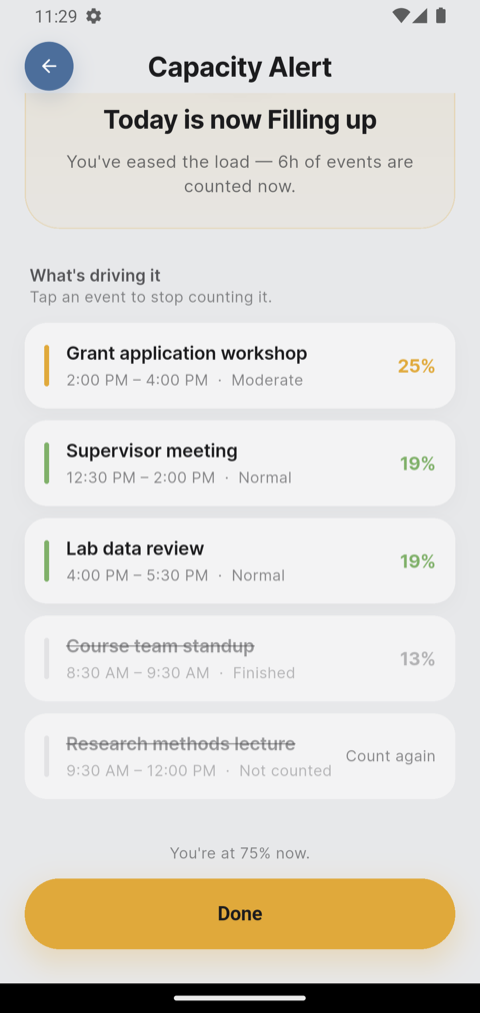
Tap an event in the list to stop counting it — the same choice as on the Schedule. The ring moves the moment you do.
- Set enough aside and the page changes to Today is now Filling up (or whichever it has become), with a single Done button.
- Your status follows the day: a Stretched BAI raised comes down by itself. One you chose yourself stays.
- Anything you set aside stays in the list, marked, with Count again on it.
Looking at a day that has already passed? The page reads Wednesday was overloaded, calls the list What drove it, and offers no advice. Its events can no longer be tapped.
3Mode switches and reminders
- Work hours starting or ending — BAI tells you at each block's start and end. On Android, allow Alarms & reminders when BAI asks (once) so these arrive on the minute even with the screen off.
- Arriving at a pinned place — a note that BAI has moved you.
- By Focus — said in the app when you open BAI, since iPhone cannot tell BAI while it is closed.
- Reminders — no places pinned yet, By Focus not set up, or still in Work mode after two days. Usually a setting that needs a look.
- How available are you? — after five work days without a mood check-in (two if your calendar is off or none is connected). Tap it to check in.
- Coming up … don't forget to prepare — the reminders you set on an event (Schedule).
- Work outside your hours — in the app only, never on the lock screen: a note when the time you set is up, and the next-day question Did you work outside your hours yesterday? (or over the weekend?) with an Answer button (Daily use, step 6).
Step 5
Mood — how do you feel?
Status is what your calendar says. Mood is what you say. The gap between the two is what the study is looking at, so this is the one thing worth doing daily.
1Check in
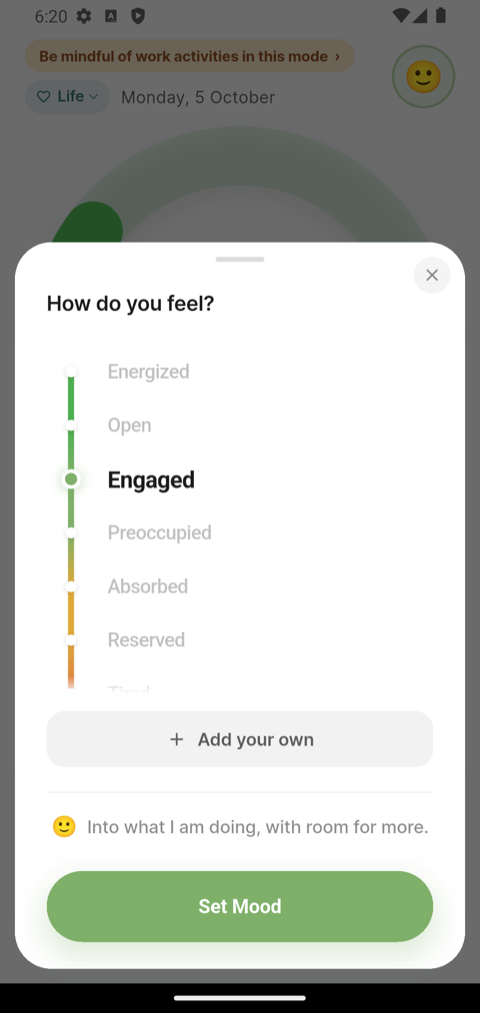
Tap the face in the top-right corner of the dashboard. Pick the point on the scale that fits, from Energized at the top to Burned out at the bottom, then tap Set Mood.
The line under the scale describes whichever one you have picked, so you can check it means what you think.
Gone quiet? After five work days without a check-in — two if your calendar is off or none is connected — BAI reminds you once on the lock screen, then in the app once a day until you check in (twice a day with the calendar off or none connected). It never asks on a non-working day, or while your schedule is off.
2Add a word of your own
If none of the ten fits, tap Add your own at the foot of the scale. Name it, write one short line describing it, and place it on the scale — 1 is your most available, 10 your least. It joins the list and stays there.
3When BAI offers to match your status
A mood that pulls away from your current status brings up a second sheet — here, Stressed against a status of only Busy — naming what it would change your status to and why. Set to … accepts it; Keep my status leaves it as it is. Either way, the mood itself is recorded.
Accept it and tap the arc on the dashboard: the negotiation advice you get now speaks to how you actually feel — see Daily use, step 2.
Step 6
Insights — what the weeks add up to
Insights is the only screen that looks backwards. It needs a few days of use before it says anything; until then it tells you so rather than guessing.
1Your week at a glance
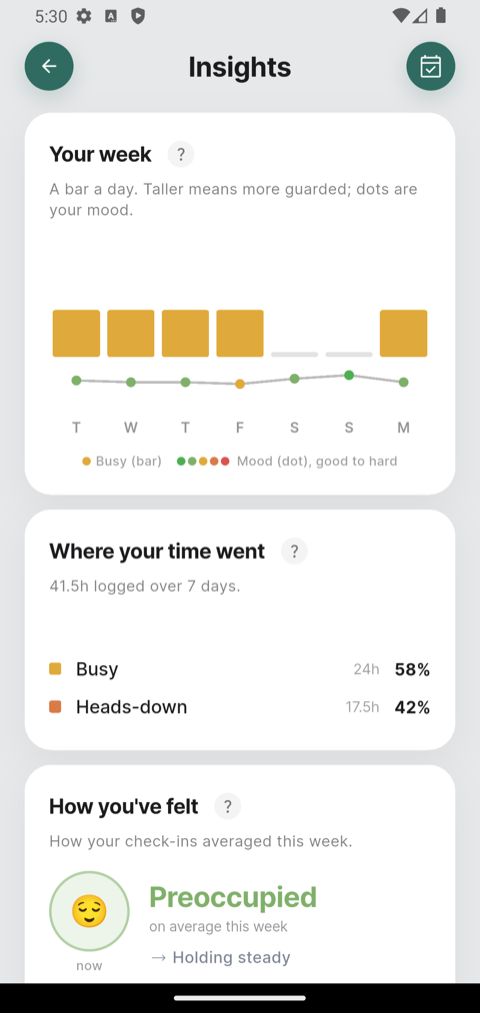
Tap Insights from the dashboard. The first panel is a bar a day: taller means more guarded. The dots along it are your mood check-ins, so you can see the two move together — or not.
2Where your time went, and how you felt
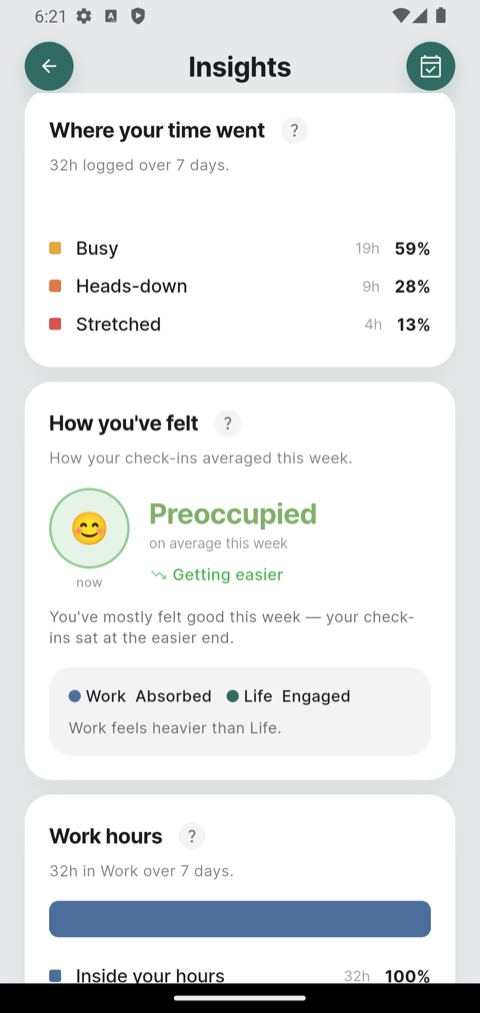
Where your time went splits your logged hours by status, so you can see how much of the week you spent holding people off.
How you've felt sums up your check-ins in words, not numbers: your week's average as a mood — Tired, Absorbed, Stressed — with a sentence about what that means, and each mode's average as a word too. If Life is reading heavier than Work, it says so, which is exactly the kind of thing worth noticing.
3Work hours, kept or crossed
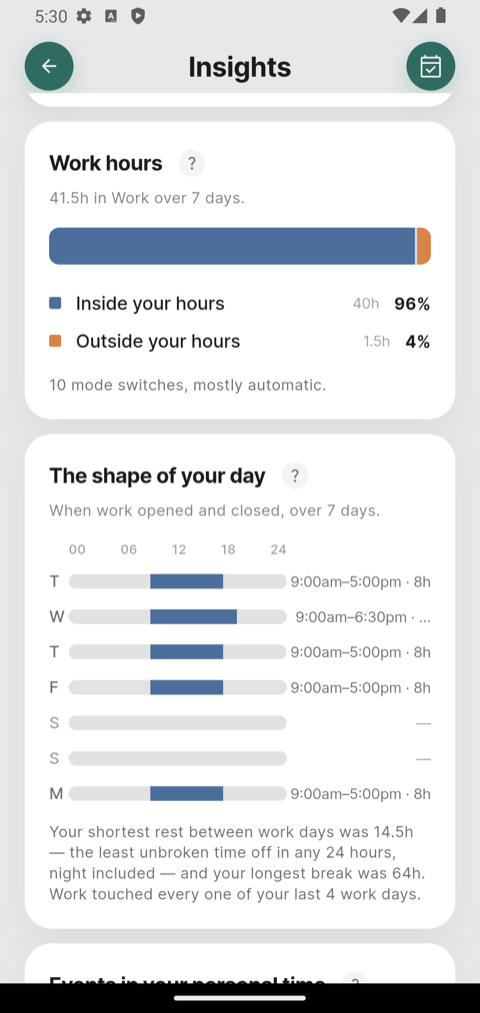
Work hours compares the time you actually spent in Work mode against the hours you told BAI you work — and how much of it landed outside them.
It appears only when your work schedule is set to Fixed hours or Custom hours in Controls. With the schedule off, or switching by place, By Focus or By Do Not Disturb, there are no planned hours to compare against, so Insights leaves it out.
If you change your schedule, the count starts again from that moment. Days you worked before the change are not measured against the new hours.
This is the boundary, measured. Hours outside your own window are the number to watch.
4The shape of your day
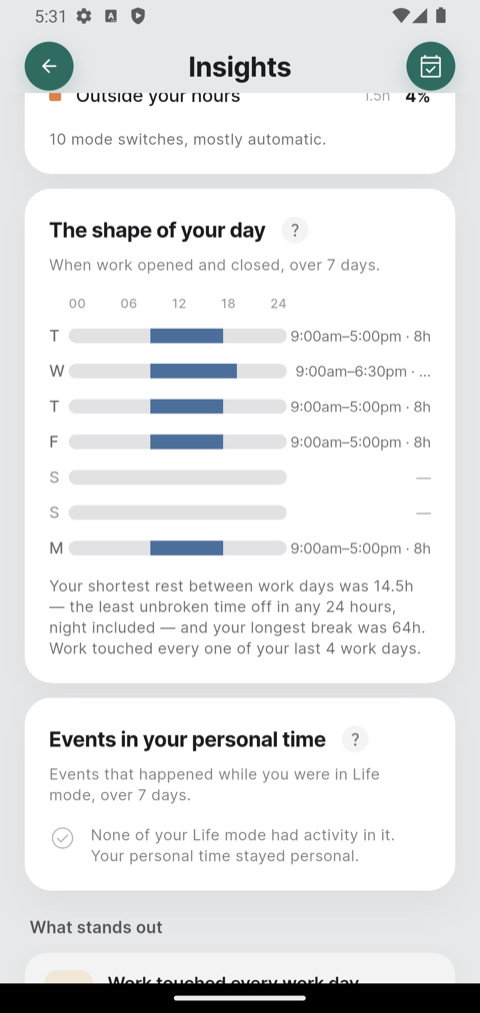
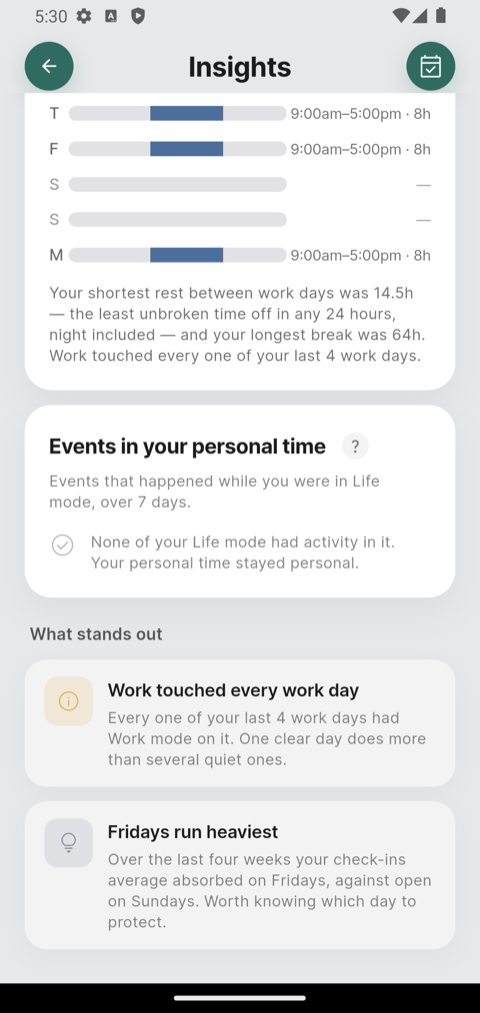
A bar per day showing when work opened and closed. Underneath it, your shortest rest between working days and your longest unbroken break.
4aWork outside hours New
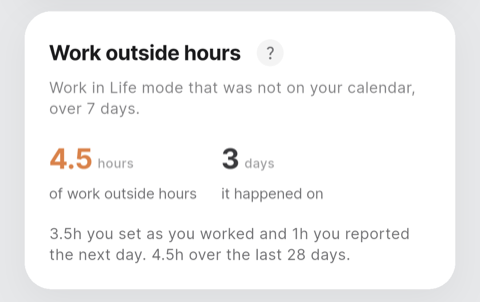
The work you did in Life mode that was not on your calendar: the time you set with the yellow line on the dashboard, and what you answered when BAI asked the next day. It shows the hours and days for the week, and the total over four weeks.
It appears once you have recorded some. It is not part of your work hours, and calendar events in Life mode are counted separately, under Events in your personal time.
5What stands out
The last panel is written in sentences: patterns BAI has noticed across the period, such as work touching every working day, or less room as the week goes on.
Once there have been three overloaded days in four weeks, it also says what happened on them — whether you kept Stretched or changed it, by hand or after a check-in — and whether those days felt heavier than the rest.
These are observations, not instructions. They are there to be recognised or dismissed.
6Look back at a date
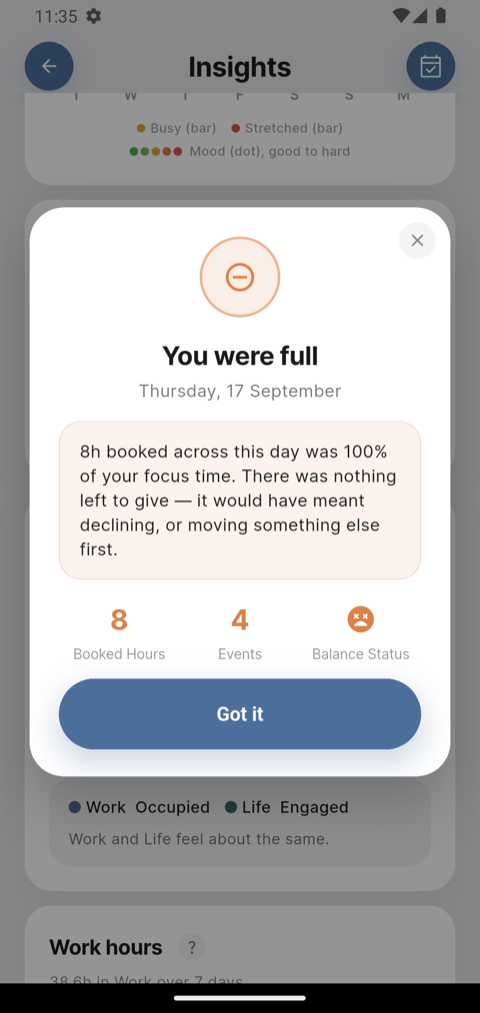
Insights has its own calendar button, the mirror image of the Schedule's: it only lets you pick days that have already happened, and asks how did it go? rather than am I free? Pick a day, or drag across a range, and tap See how it went. BAI answers in the past tense — You were full, There was room — with the figures beneath.
7Your arrangement
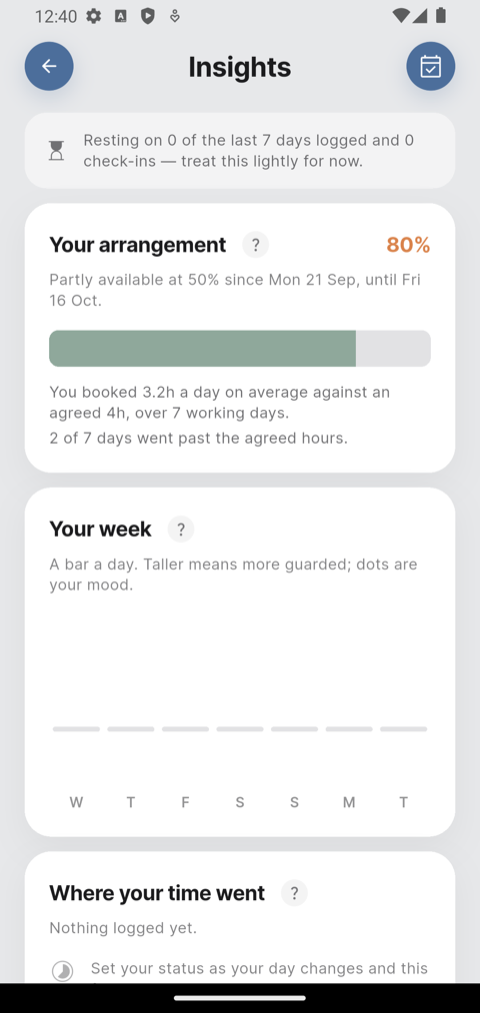
While Partly available runs, the first panel is Your arrangement: the hours you booked against the hours you agreed, with a bar that turns orange past them.
- You booked 5.1h a day on average against an agreed 4h, and how many days went past it (the last two weeks, for a longer arrangement).
- How much of your time your status sat at Partly available, and what lifted it.
- Whether your check-ins have been lighter or heavier than in the two weeks before it began.
It shows in Work and Life while the arrangement runs, and goes when it ends.
Step 7
The widget — your day without opening BAI
BAI has a widget: today's load at a glance on your home screen, and on an iPhone on the lock screen too. With the calendar off it becomes a one-tap mood check-in instead.
1On an iPhone
Home screen — keeps the BAI icon where it is:
- Touch and hold an empty spot on the home screen until the apps jiggle.
- Tap Edit, then Add Widget.
- Find BAI, choose a size — small or medium — and tap Add Widget. Tap Done.
Touching and holding the BAI icon itself also offers the widget, but on iPhone that turns the icon into the widget — the icon goes from the home screen. BAI is not deleted: it is still in the App Library (swipe left past your last home screen), and tapping the widget opens it. Use the steps above to keep both.
Lock screen — a small ring, like the battery one:
- Touch and hold the lock screen, then tap Customize and choose Lock Screen.
- Tap the widget area under the clock.
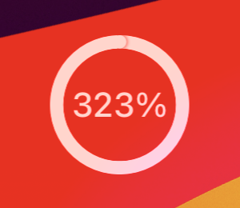
- Choose BAI: the round one shows how much of today is booked as a ring and a percentage; the wide one says the day in words and the hours booked. Tap Done.
The lock screen draws widgets in one colour to match your wallpaper, so the ring does not turn amber or red — the percentage says it.
2On an Android phone
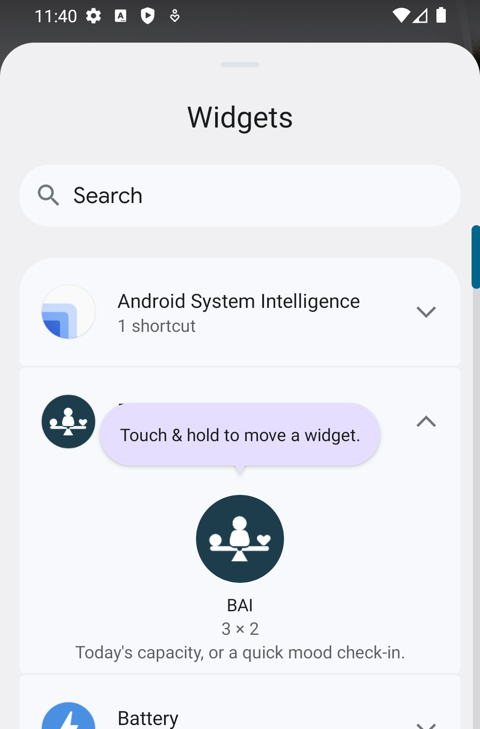
- Touch and hold an empty spot on the home screen, then tap Widgets.
- Find BAI in the list and tap it to see the widget.
- Touch and hold the widget, and drag it to where you want it on the home screen.
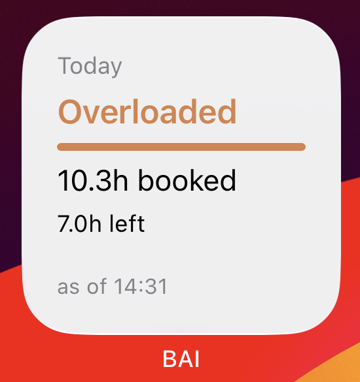
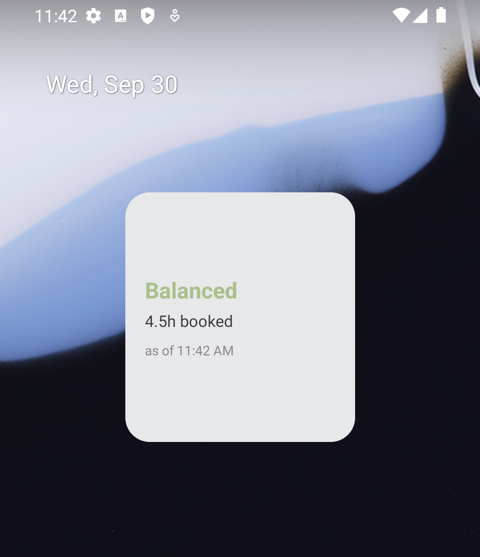
It shows the day in a word — Balanced, Filling up, Overloaded — the hours booked, and when it was last updated. Android has no lock-screen widgets on phones, so this one is for the home screen only.
3Keeping it up to date
The widget shows the day as BAI last read your calendar, and says when — as of 11:42. It refreshes whenever you open BAI, and in the background when your phone allows. If it looks out of date, open BAI for a moment.
In short
What a normal day looks like
Once it is set up, BAI asks very little of you:
- Check in once a day — tap the face, pick how you feel.
- Glance at the dashboard before agreeing to something new.
- Correct your status when the automatic one is wrong.
- Set aside what does not count — a private event, a reminder-style entry — so your day and your status reflect what you are really carrying.
- If you use By Focus, open BAI when you change Focus, so your Work and Life time is recorded on time.
- Look at Insights weekly, not daily. It is about patterns.